
Create a Diagram of a Typical Network
In this section we're going to create a full network diagram by walking through it step by step.
Each step has
- An objective - the step heading
- Source code - for the diagram
- Play - where you can test the diagram and play with it.
- Explore - where you can confirm your understanding by trying things as you play.
Example Network Diagram
 Press to play around with this diagram source online.
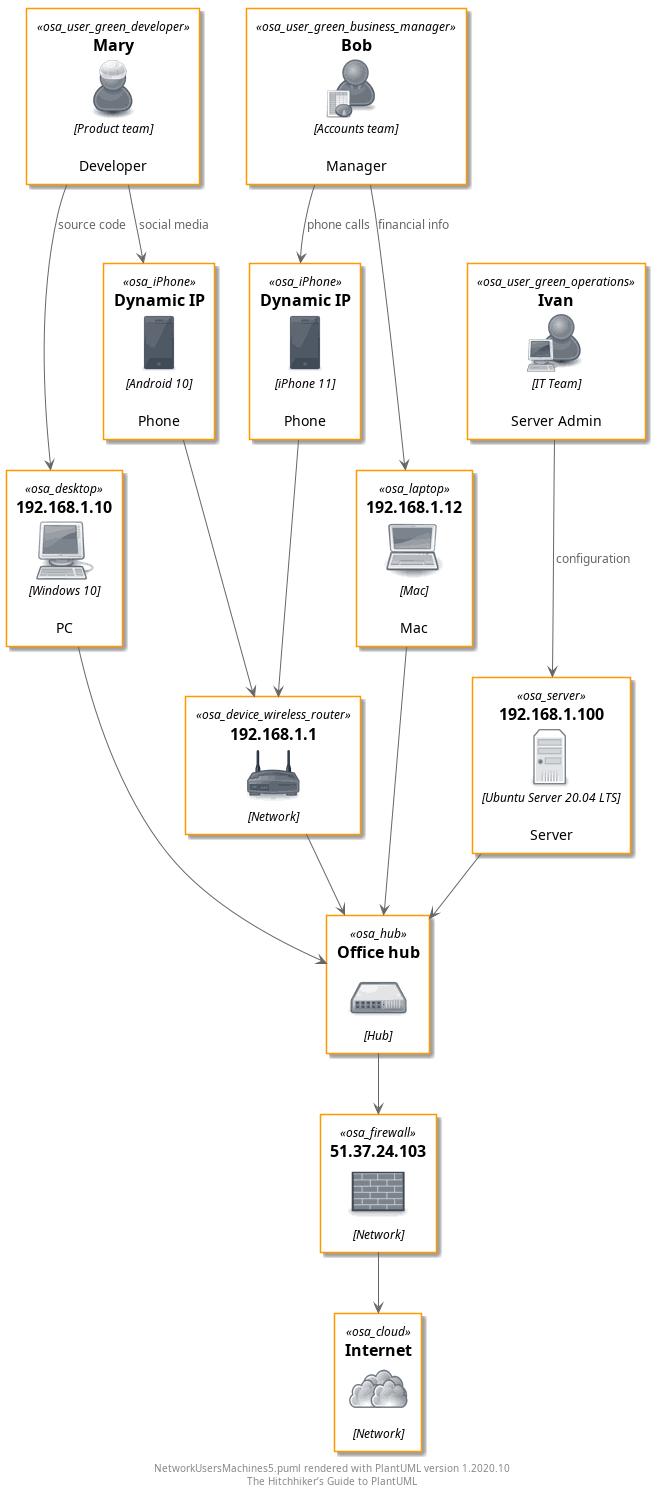
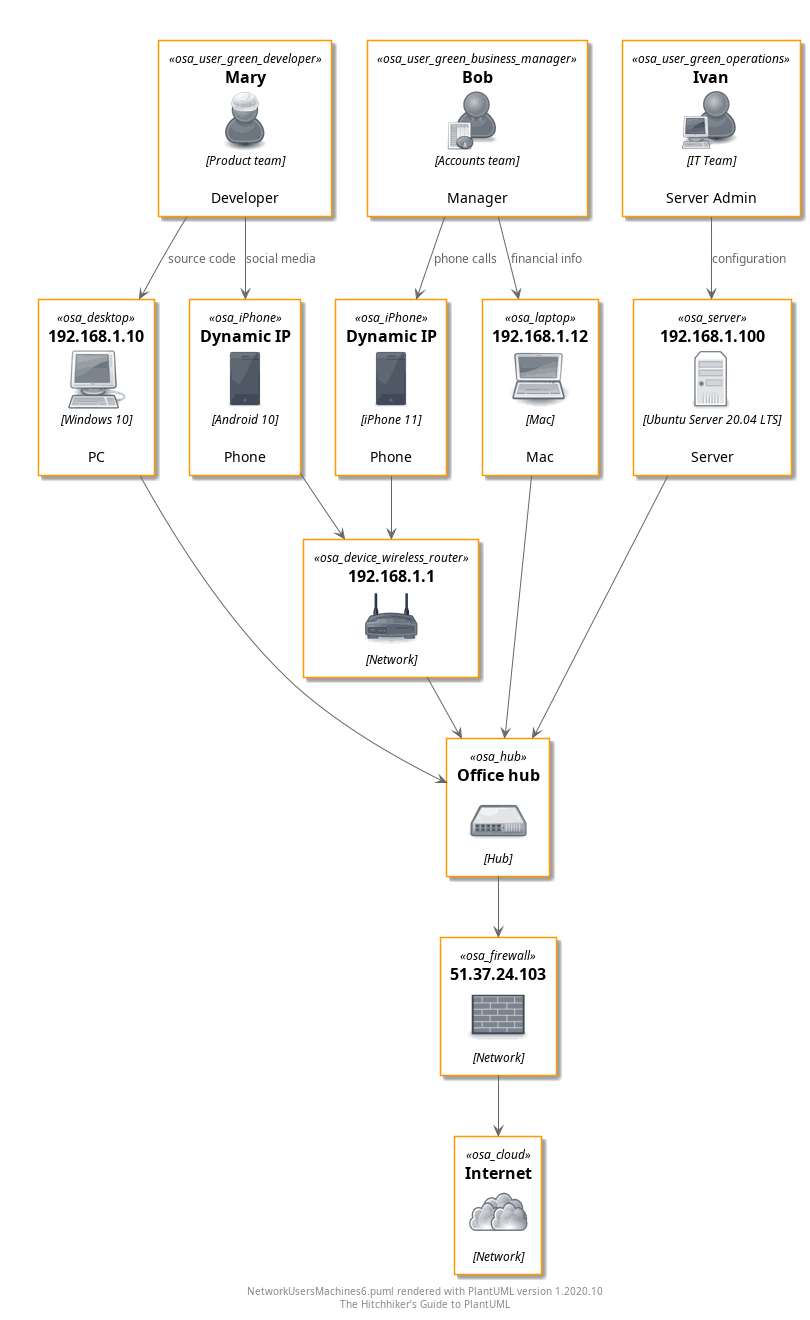
Here we have a typical network diagram:
- Mary is a Developer in the Product team. She has a Windows 10 PC and an Android phone.
- Bob is an Accountant in the Accounts team. He has a Mac and an iPhone.
- They connect to the office server, and via a firewall to the Internet.
There are 3 types of element with different properties:
- Users: Role, Name, Team
- Machines: Type, IP address, OS
- Network Equipment: Type, IP address, and e.g. product model and number
Select an icon library
The OpenSecurityArchitecture library has a nice set of users and network components so we'll use that.
To see all stdlib icon libraries, browse to https://github.com/plantuml/plantuml-stdlib
View all the icons with listsprites
-
Create a blank diagram that includes the icon files we're interested in
-
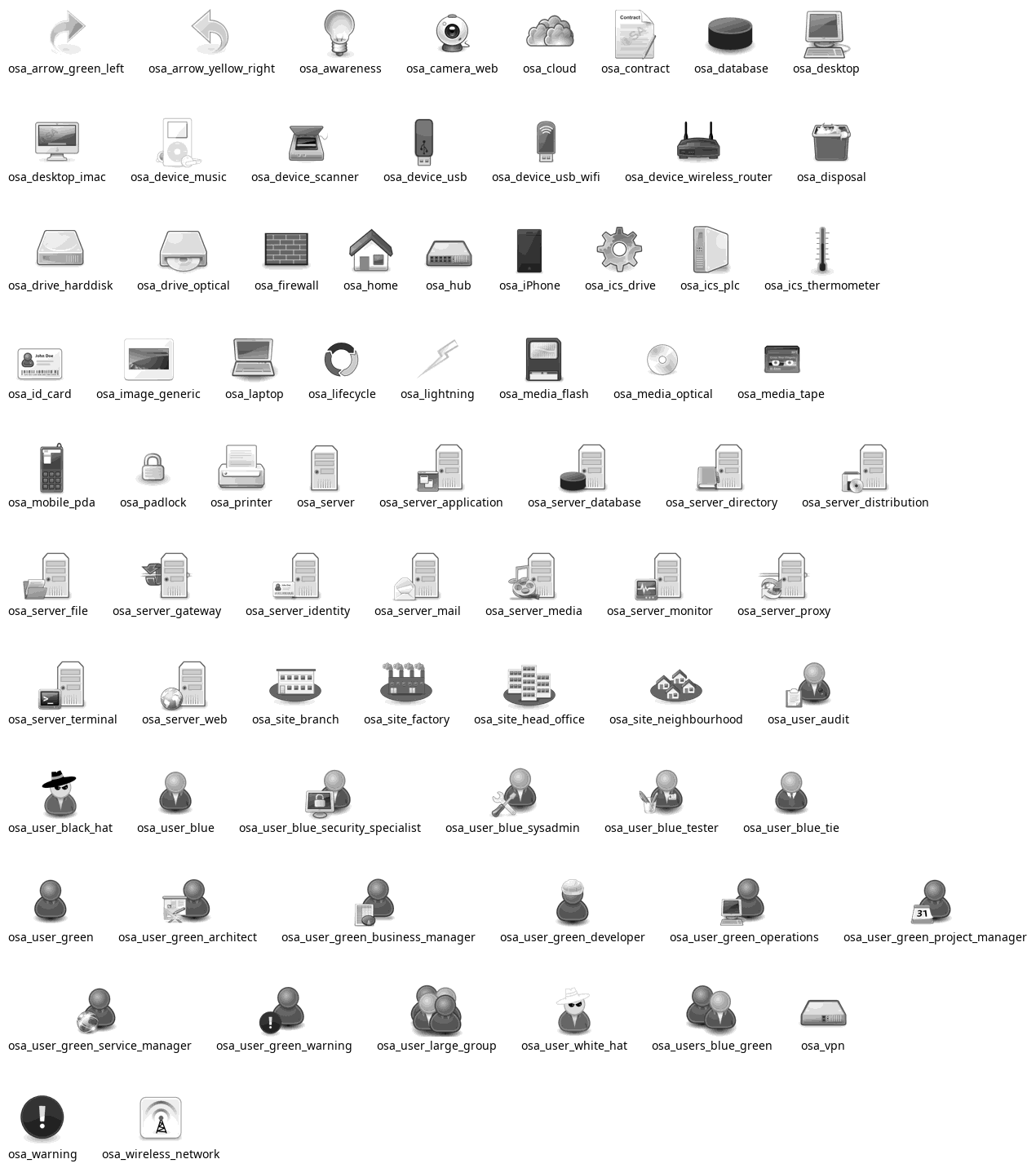
Add a "listsprites" statement
listsprites lists all the sprites in the files you include in your diagram source
caption="Using listsprites to show all icons in a library">
Play
Press to play around with this diagram source online.
Source
@startuml

!define osaPuml https://raw.githubusercontent.com/Crashedmind/PlantUML-opensecurityarchitecture2-icons/master
!include osaPuml/Common.puml
!include osaPuml/User/all.puml
!include osaPuml/Hardware/all.puml
!include osaPuml/Misc/all.puml
!include osaPuml/Server/all.puml
!include osaPuml/Site/all.puml

listsprites

footer %filename() rendered with PlantUML version %version()\nThe Hitchhiker’s Guide to PlantUML
@enduml
Explore
- Take a look at some other stdlib libraries e.g. awslib
- What happens if we don't include any libraries?
Gather the icons we need
-
Create a diagram with the selected icons
-
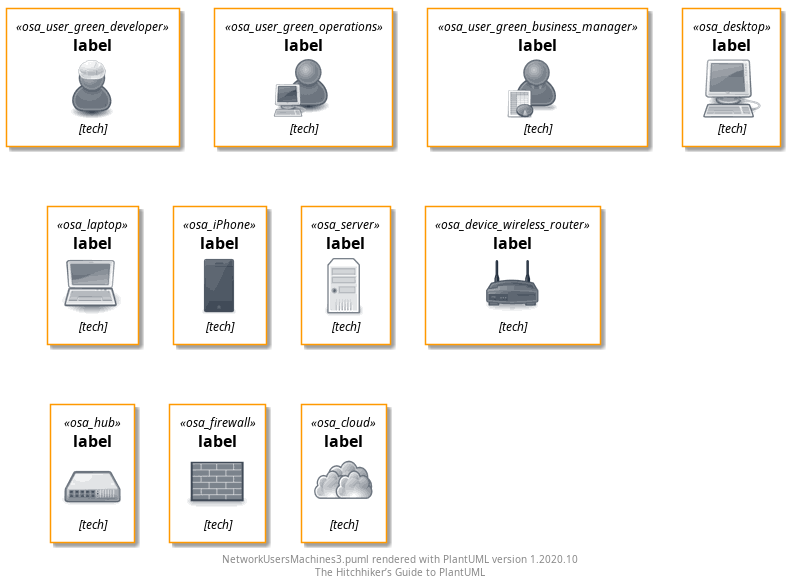
This allows us to see and review the icons first with the icon name
-
It also confirms everything is working before we connect them together.
We're using a Blue theme, so our icons appear blue by default. Yours may appear yellow.
caption="Select the subset of icons for our diagram">

Play
Press to play around with this diagram source online.
Source
We can't have the icon on its own e.g. "<$osa_user_green_developer>" would not work
@startuml

!define osaPuml https://raw.githubusercontent.com/Crashedmind/PlantUML-opensecurityarchitecture2-icons/master
!include osaPuml/Common.puml
!include osaPuml/User/all.puml
!include osaPuml/Hardware/all.puml
!include osaPuml/Misc/all.puml
!include osaPuml/Server/all.puml
!include osaPuml/Site/all.puml

' Users
osa_user_green_developer: <$osa_user_green_developer>
osa_user_green_operations: <$osa_user_green_operations>
osa_user_green_business_manager: <$osa_user_green_business_manager>

' Devices
osa_desktop: <$osa_desktop>
osa_laptop: <$osa_laptop>
osa_iPhone: <$osa_iPhone>
osa_server: <$osa_server>

' Network
osa_device_wireless_router: <$osa_device_wireless_router>
osa_hub: <$osa_hub>
osa_firewall: <$osa_firewall>
osa_osa_cloud: <$osa_cloud>

footer %filename() rendered with PlantUML version %version()\nThe Hitchhiker’s Guide to PlantUML
@enduml
Explore
- Change the server type to a different type of server
- Change the Operations user type to a different type of user
Decorate the Icons
- We use the default functions defined as part of stdlib that decorate our raw sprites
- This makes them much more visually appealing.
caption="Decorate the icons for our diagram">
Play
Press to play around with this diagram source online.
Source
@startuml

!define osaPuml https://raw.githubusercontent.com/Crashedmind/PlantUML-opensecurityarchitecture2-icons/master
!include osaPuml/Common.puml
!include osaPuml/User/all.puml
!include osaPuml/Hardware/all.puml
!include osaPuml/Misc/all.puml
!include osaPuml/Server/all.puml
!include osaPuml/Site/all.puml

' Users
osa_user_green_developer: <$osa_user_green_developer>
osa_user_green_operations: <$osa_user_green_operations>
osa_user_green_business_manager: <$osa_user_green_business_manager>

' Devices
osa_desktop: <$osa_desktop>
osa_laptop: <$osa_laptop>
osa_iPhone: <$osa_iPhone>
osa_server: <$osa_server>

' Network
osa_device_wireless_router: <$osa_device_wireless_router>
osa_hub: <$osa_hub>
osa_firewall: <$osa_firewall>
osa_osa_cloud: <$osa_cloud>

footer %filename() rendered with PlantUML version %version()\nThe Hitchhiker’s Guide to PlantUML
@enduml
Create the diagram by connecting things together
Now for the fun bit...
- Mary is a Developer in the Product team. She has a Windows 10 PC and an Android phone.
- Bob is an Accountant in the Accounts team. He has a Mac and an iPhone.
- They connect to the office server, and via a firewall to the Internet.
caption="Connect the icons">

Play
Press to play around with this diagram source online.
Explore
- Add some text to describe the connection from firewall to cloud
Source
@startuml

!define osaPuml https://raw.githubusercontent.com/Crashedmind/PlantUML-opensecurityarchitecture2-icons/master
!include osaPuml/Common.puml
!include osaPuml/User/all.puml
!include osaPuml/Hardware/all.puml
!include osaPuml/Misc/all.puml
!include osaPuml/Server/all.puml
!include osaPuml/Site/all.puml

'. Mary is a Developer in the Product team. She has a Windows 10 PC and an Android phone.
'. Bob is a Manager in the Accounts team. He has Mac and an iPhone.
'. Ivan is an IT guy who looks after the server.
'. They connect to the network hub, and via a firewall to the Internet.


' Users
osa_user_green_developer(Mary, "Mary", "Product team", "Developer")
osa_user_green_operations(Ivan, "Ivan", "IT Team", "Server Admin")
osa_user_green_business_manager(Bob, "Bob", "Accounts team", "Manager")

' Devices
osa_desktop(pc, "192.168.1.10", "Windows 10", "PC")
osa_laptop(mac, "192.168.1.12", "Mac", "Mac")
osa_iPhone(iphone, "Dynamic IP", "iPhone 11", "Phone")
osa_iPhone(android, "Dynamic IP", "Android 10", "Phone")
osa_server(server, "192.168.1.100", "Ubuntu Server 20.04 LTS", "Server")

' Network
osa_device_wireless_router(wifiAP, "192.168.1.1", "Network")
osa_hub(hub, "Office hub", "Hub")
osa_firewall(firewall, "51.37.24.103", "Network")
osa_cloud(cloud, "Internet", "Network")

Mary -> pc: source code
Mary -> android: social media

Bob -> mac: financial info
Bob -> iphone: phone calls

Ivan -> server: configuration

iphone -> wifiAP
android -> wifiAP

wifiAP -> hub
server -> hub
mac -> hub
pc -> hub

hub -> firewall

firewall -> cloud

footer %filename() rendered with PlantUML version %version()\nThe Hitchhiker’s Guide to PlantUML
@enduml
Change the Layout to Vertical
We want the diagram to be vertical, with the cloud at the bottom and the users at the top.
We use
-->to connect the icons so they are arranged vertically.See
Layoutfor more info on arrows and layout.
caption="Vertical Layout">
Play
Press to play around with this diagram source online.
Explore
- Arrange the diagram vertically with cloud on top, users on bottom
- Arrange the diagram horizontally from left to right with users on left, cloud on right
Source
@startuml

!define osaPuml https://raw.githubusercontent.com/Crashedmind/PlantUML-opensecurityarchitecture2-icons/master
!include osaPuml/Common.puml
!include osaPuml/User/all.puml
!include osaPuml/Hardware/all.puml
!include osaPuml/Misc/all.puml
!include osaPuml/Server/all.puml
!include osaPuml/Site/all.puml

'. Mary is a Developer in the Product team. She has a Windows 10 PC and an Android phone.
'. Bob is a Manager in the Accounts team. He has Mac and an iPhone.
'. Ivan is an IT guy who looks after the server.
'. They connect to the network hub, and via a firewall to the Internet.


' Users

osa_user_green_developer(Mary, "Mary", "Product team", "Developer")
osa_user_green_operations(Ivan, "Ivan", "IT Team", "Server Admin")
osa_user_green_business_manager(Bob, "Bob", "Accounts team", "Manager")

' Devices
osa_desktop(pc, "192.168.1.10", "Windows 10", "PC")
osa_laptop(mac, "192.168.1.12", "Mac", "Mac")
osa_iPhone(iphone, "Dynamic IP", "iPhone 11", "Phone")
osa_iPhone(android, "Dynamic IP", "Android 10", "Phone")
osa_server(server, "192.168.1.100", "Ubuntu Server 20.04 LTS", "Server")

' Network
osa_device_wireless_router(wifiAP, "192.168.1.1", "Network")
osa_hub(hub, "Office hub", "Hub")
osa_firewall(firewall, "51.37.24.103", "Network")
osa_cloud(cloud, "Internet", "Network")


Mary --> pc: source code
Mary --> android: social media

Bob --> mac: financial info
Bob --> iphone: phone calls


Ivan --> server: configuration

iphone --> wifiAP
android --> wifiAP
wifiAP --> hub

server --> hub
mac --> hub
pc --> hub


hub --> firewall

firewall --> cloud

footer %filename() rendered with PlantUML version %version()\nThe Hitchhiker’s Guide to PlantUML
@enduml
Change the Layout by grouping icons together
Here we use the together keyword.
The
togetherkeyword allows you to specify what icons you want to group together. Like all layout options, minimize their use. See why in the Explore section.
caption="Group our icons">
Play
Press to play around with this diagram source online.
Explore
- What happens if we put a "together" around the network elements too - line 33?
Source
@startuml

!define osaPuml https://raw.githubusercontent.com/Crashedmind/PlantUML-opensecurityarchitecture2-icons/master
!include osaPuml/Common.puml
!include osaPuml/User/all.puml
!include osaPuml/Hardware/all.puml
!include osaPuml/Misc/all.puml
!include osaPuml/Server/all.puml
!include osaPuml/Site/all.puml

'. Mary is a Developer in the Product team. She has a Windows 10 PC and an Android phone.
'. Bob is a Manager in the Accounts team. He has Mac and an iPhone.
'. Ivan is an IT guy who looks after the server.
'. They connect to the network hub, and via a firewall to the Internet.


' Users
together {
osa_user_green_developer(Mary, "Mary", "Product team", "Developer")
osa_user_green_operations(Ivan, "Ivan", "IT Team", "Server Admin")
osa_user_green_business_manager(Bob, "Bob", "Accounts team", "Manager")
}

' Devices
together {
osa_desktop(pc, "192.168.1.10", "Windows 10", "PC")
osa_laptop(mac, "192.168.1.12", "Mac", "Mac")
osa_iPhone(iphone, "Dynamic IP", "iPhone 11", "Phone")
osa_iPhone(android, "Dynamic IP", "Android 10", "Phone")
osa_server(server, "192.168.1.100", "Ubuntu Server 20.04 LTS", "Server")
}


' Network

osa_device_wireless_router(wifiAP, "192.168.1.1", "Network")
osa_hub(hub, "Office hub", "Hub")
osa_firewall(firewall, "51.37.24.103", "Network")
osa_cloud(cloud, "Internet", "Network")


Mary --> pc: source code
Mary --> android: social media

Bob --> mac: financial info
Bob --> iphone: phone calls


Ivan --> server: configuration

iphone --> wifiAP
android --> wifiAP
wifiAP --> hub

server --> hub
mac --> hub
pc --> hub


hub --> firewall

firewall --> cloud

footer %filename() rendered with PlantUML version %version()\nThe Hitchhiker’s Guide to PlantUML
@enduml
Add a Legend Table and a Note
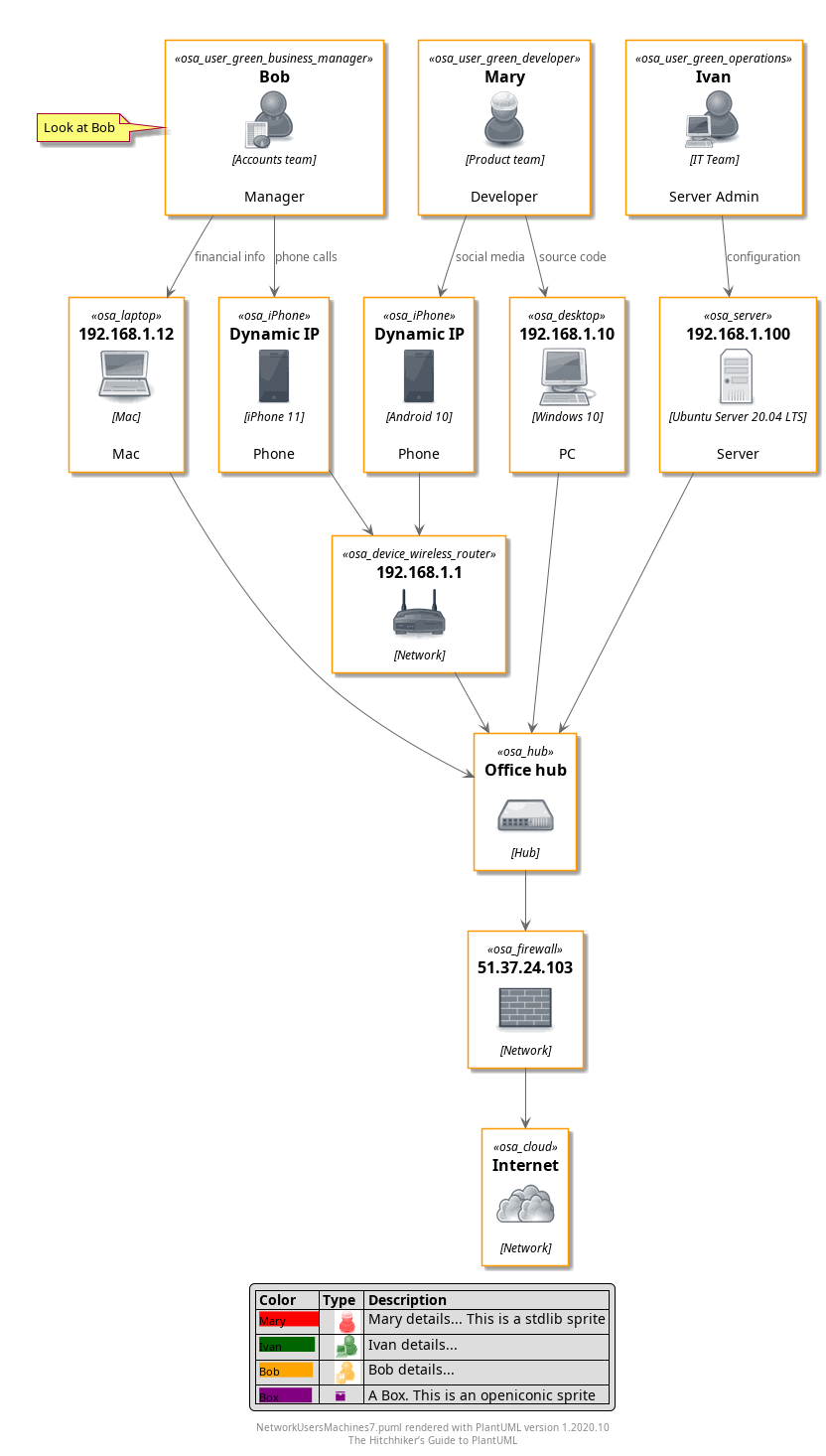
We add a note ala "note left : Look at Bob" where the note instruction is on the line following Bob (the icon we want to put the note on).
A diagram Legend can be useful.
This example shows
-
how to create a table
-
how to add https://plantuml.com/openiconic sprites
-
how to add stdlib sprites and scale (*.4 in this example) and colour them.
-
how to change the table cell colour
openiconic sprites are referenced with a "&" e.g. "&box"
stdlib sprites are referenced with a "$" e.g. "$osa_user_green_operations"
caption="Add a Legend">
Play
Press to play around with this diagram source online.
Explore
- Create a table for each device and color code it as static or dynamic IP.
- What happens if you add "skinparam handwritten true" after the include section?
Source
@startuml

!define osaPuml https://raw.githubusercontent.com/Crashedmind/PlantUML-opensecurityarchitecture2-icons/master
!include osaPuml/Common.puml
!include osaPuml/User/all.puml
!include osaPuml/Hardware/all.puml
!include osaPuml/Misc/all.puml
!include osaPuml/Server/all.puml
!include osaPuml/Site/all.puml

'. Mary is a Developer in the Product team. She has a Windows 10 PC and an Android phone.
'. Bob is a Manager in the Accounts team. He has Mac and an iPhone.
'. Ivan is an IT guy who looks after the server.
'. They connect to the network hub, and via a firewall to the Internet.


' Users
together {
osa_user_green_developer(Mary, "Mary", "Product team", "Developer")
osa_user_green_operations(Ivan, "Ivan", "IT Team", "Server Admin")
osa_user_green_business_manager(Bob, "Bob", "Accounts team", "Manager")
note left : Look at Bob
}

' Devices
together {
osa_desktop(pc, "192.168.1.10", "Windows 10", "PC")
osa_laptop(mac, "192.168.1.12", "Mac", "Mac")
osa_iPhone(iphone, "Dynamic IP", "iPhone 11", "Phone")
osa_iPhone(android, "Dynamic IP", "Android 10", "Phone")
osa_server(server, "192.168.1.100", "Ubuntu Server 20.04 LTS", "Server")
}


' Network

osa_device_wireless_router(wifiAP, "192.168.1.1", "Network")
osa_hub(hub, "Office hub", "Hub")
osa_firewall(firewall, "51.37.24.103", "Network")
osa_cloud(cloud, "Internet", "Network")


Mary --> pc: source code
Mary --> android: social media

Bob --> mac: financial info
Bob --> iphone: phone calls


Ivan --> server: configuration

iphone --> wifiAP
android --> wifiAP
wifiAP --> hub

server --> hub
mac --> hub
pc --> hub


hub --> firewall

firewall --> cloud


legend
    |= Color |= Type |= Description |
    | <size:11><back:#Red>Mary           </back></size>|    <color:Red><$osa_user_green_developer*.4></color> | Mary details... This is a stdlib sprite |
    | <size:11><back:#DarkGreen>Ivan           </back></size>|    <color:DarkGreen><$osa_user_green_operations*.4></color> | Ivan details... |
    | <size:11><back:#Orange>Bob           </back></size>|    <color:Orange><$osa_user_green_business_manager*.4></color> | Bob details... |
    | <size:11><back:#Purple>Box           </back></size>|    <color:Purple><&box></color> | A Box. This is an openiconic sprite |
endlegend

footer %filename() rendered with PlantUML version %version()\nThe Hitchhiker’s Guide to PlantUML
@enduml
Conclusion
We went step-by-step through the creation of a network diagram.
Looking at the source code for the diagram, there is very little redundant information. Most of the text appears in the diagram as text, the remainder is for the layout direction and the included icons.
Now that we have a template diagram, producing variants of it is even quicker as we just need to edit the relevant lines of text.